IPhone storage full? How to free up space fast
To free up storage on iPhone, open Settings → General → iPhone Storage to see what is using space. Then empty Recently Deleted in Photos, merge duplicates, delete old screenshots and large videos, set Messages to keep messages for 1 year, and offload apps you don't use. For most people, photos and videos are the biggest win.
Step 1: Find out what is actually using your storage
- Open Settings → General → iPhone Storage.
- Wait a few seconds for the colored bar to load. It splits your storage into Apps, Photos, Media, Messages, iOS and System Data.
- Scroll down to see each app sorted by size. Tap an app to see its own size versus its Documents & Data.
On most iPhones, Photos is the largest category by far. That's why the steps below start there.
Step 2: Clean up your photo library
1. Empty Recently Deleted
Deleted photos stay on your iPhone for up to 30 days and keep using space. Open Photos and scroll to Utilities → Recently Deleted. Unlock it with Face ID, tap Select, then Delete All. (On iOS 17 and earlier, it's under the Albums tab.)
2. Merge duplicate photos
iOS has a built-in Duplicates album under Utilities. Open it and tap Merge to keep the best copy of each set. It only catches exact or near-exact copies, though, not ten similar shots of the same moment. See our full guide on deleting duplicate photos on iPhone.
3. Delete old screenshots and screen recordings
Screenshots pile up quietly, often into the thousands. Open Photos → Media Types → Screenshots and bulk-select old ones. Here's how to delete all screenshots at once.
4. Deal with large videos
A single minute of 4K video at 60 fps can use around 400 MB. Videos are usually the fastest way to free gigabytes. You can delete the ones you don't need, or compress videos on iPhone to keep them at a fraction of the size.
5. Convert Live Photos you don't need
Each Live Photo stores a short video clip alongside the picture. Converting the ones you don't need to stills can reclaim a surprising amount of space. See how to convert Live Photos to still photos.
6. Turn on Optimize iPhone Storage (if you use iCloud Photos)
Go to Settings → [your name] → iCloud → Photos and choose Optimize iPhone Storage. Full-resolution originals stay in iCloud, and your iPhone keeps smaller versions. This only helps if your iCloud plan has room for your library.
Step 3: Clear Messages and chat apps
7. Keep messages for 1 year instead of forever
Go to Settings → Apps → Messages → Keep Messages (on older iOS: Settings → Messages) and choose 1 Year. Then go to Settings → General → iPhone Storage → Messages and use Review Large Attachments to delete big videos and files people sent you.
8. Clean WhatsApp media
WhatsApp can save every photo and video you receive to your camera roll, and keeps its own copy too. Follow our guide to delete WhatsApp media on iPhone.
Step 4: Apps and system
9. Offload or delete unused apps
In iPhone Storage, tap a large app you rarely use and choose Offload App. This removes the app but keeps its data, so you can reinstall it later and pick up where you left off. You can also enable Offload Unused Apps so iOS does this automatically.
10. Restart to shrink System Data
"System Data" (formerly "Other") holds caches, logs and temporary files. You can't delete it directly. Restarting your iPhone and keeping 5–10 GB free usually lets iOS clean it up by itself.
Do it in one tap with Clean Kit
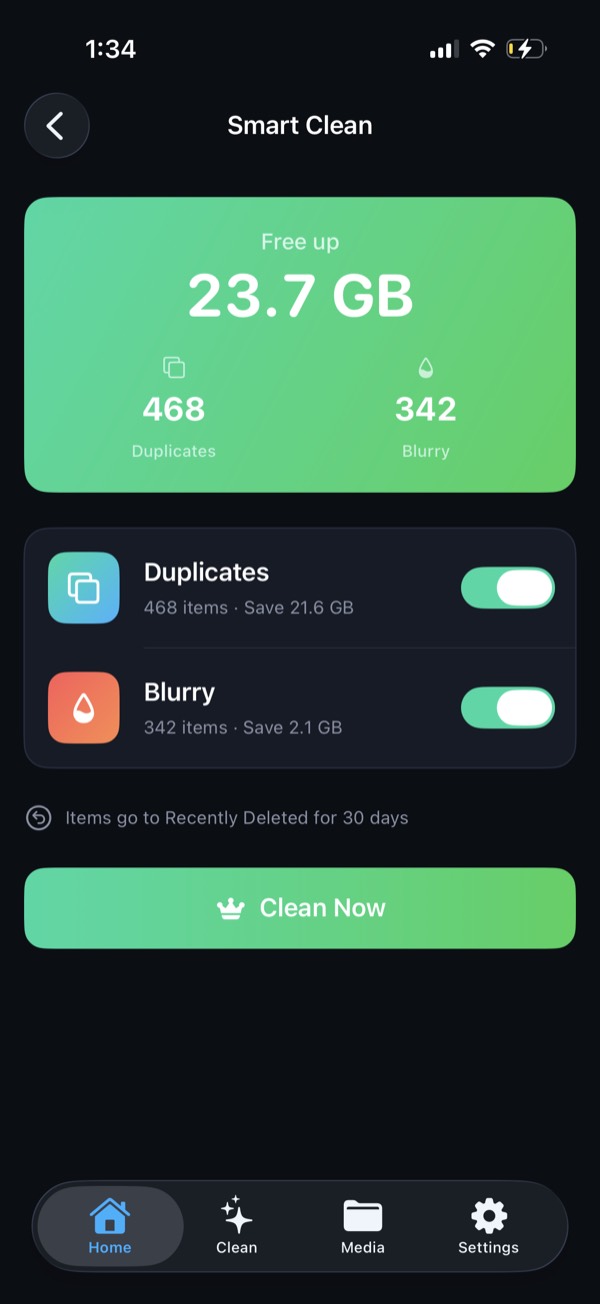
Clean Kit's Smart Clean scans your library and bundles duplicates, blurry photos and old screenshots into a single recommendation. It shows exactly how much space you'll get back. Review it, toggle categories, then tap Clean Now. Everything goes to Recently Deleted first, so nothing is lost by accident.
Download on the App StoreFree to download for iPhone and iPad. Everything runs on your device, and your photos are never uploaded.
Frequently asked questions
Why is my iPhone storage full when I have iCloud?
iCloud only saves space on your iPhone if Optimize iPhone Storage is turned on under Settings → [your name] → iCloud → Photos. Without it, your iPhone keeps a full-resolution copy of every photo and video locally. Other data, like Messages attachments and app data, also stays on the device.
Does deleting photos free up space immediately?
No. Deleted photos move to Recently Deleted and keep using space for up to 30 days. To reclaim space right away, open Photos → Utilities → Recently Deleted and choose Delete All.
What is System Data on iPhone and can I delete it?
System Data is caches, logs, temporary files and other resources iOS manages itself. You can't delete it manually, but restarting your iPhone and keeping some free space usually lets iOS clear part of it.
How much free storage should I keep on my iPhone?
Keep at least 5–10 GB free. iOS needs room for updates, caches and temporary files. When storage is nearly full, apps can slow down, crash, or fail to save new photos.