ICloud storage full? How to free up iCloud space
Go to Settings → [your name] → iCloud to see what is using your iCloud storage. The usual culprits are Photos, Backups and iCloud Drive. Delete backups of devices you no longer use, remove duplicate photos and large videos (with iCloud Photos on, deleting them on your iPhone also frees iCloud space), then empty Recently Deleted, because photos there still count against your storage.
Step 1: See what's using your iCloud storage
- Open Settings and tap your name at the top.
- Tap iCloud. The bar at the top shows what's using your storage.
- Tap Manage Account Storage (or Manage Storage) to see each item by size.
iCloud storage is not iPhone storage. iCloud is space on Apple's servers, shared across your devices. Your iPhone has its own separate storage. Freeing one doesn't always free the other. See how to free up iPhone storage for the device side.
Step 2: Delete old device backups
Backups of old phones and iPads are often forgotten and can be large.
- In Manage Account Storage, tap Backups.
- Tap a device you no longer use, then tap Delete Backup (or Turn Off and Delete).
For your current iPhone, open its backup and turn off apps you don't need backed up. Large apps with data that's already synced elsewhere are good candidates.
Step 3: Clean up iCloud Photos
With iCloud Photos turned on, your iPhone and iCloud have the same library. Deleting a photo on your iPhone deletes it from iCloud too. The biggest wins:
- Duplicates: merge them in Photos → Utilities → Duplicates. Full guide.
- Large videos: delete or compress them. Video is usually the heaviest part of a library.
- Screenshots: clear them in bulk. Here's how.
- Blurry and similar shots: see how to find them.
Then empty Recently Deleted. Photos in Recently Deleted keep counting against your iCloud storage until they're permanently removed after up to 30 days.
Step 4: Check iCloud Drive and Messages
- iCloud Drive: open the Files app, tap Browse → iCloud Drive, and delete large files and old downloads you don't need. Then empty Recently Deleted in Files.
- Messages: if Messages in iCloud is on, old attachments are stored there. Use Settings → General → iPhone Storage → Messages → Review Large Attachments to delete big ones; the deletions sync to iCloud.
Should you just buy more storage?
Sometimes that's the right call. If your library is genuinely full of photos you want to keep, an iCloud+ plan is simple. But clearing out duplicates, old backups and forgotten videos first often frees a lot of space for free.
Shrink your photo library, shrink iCloud
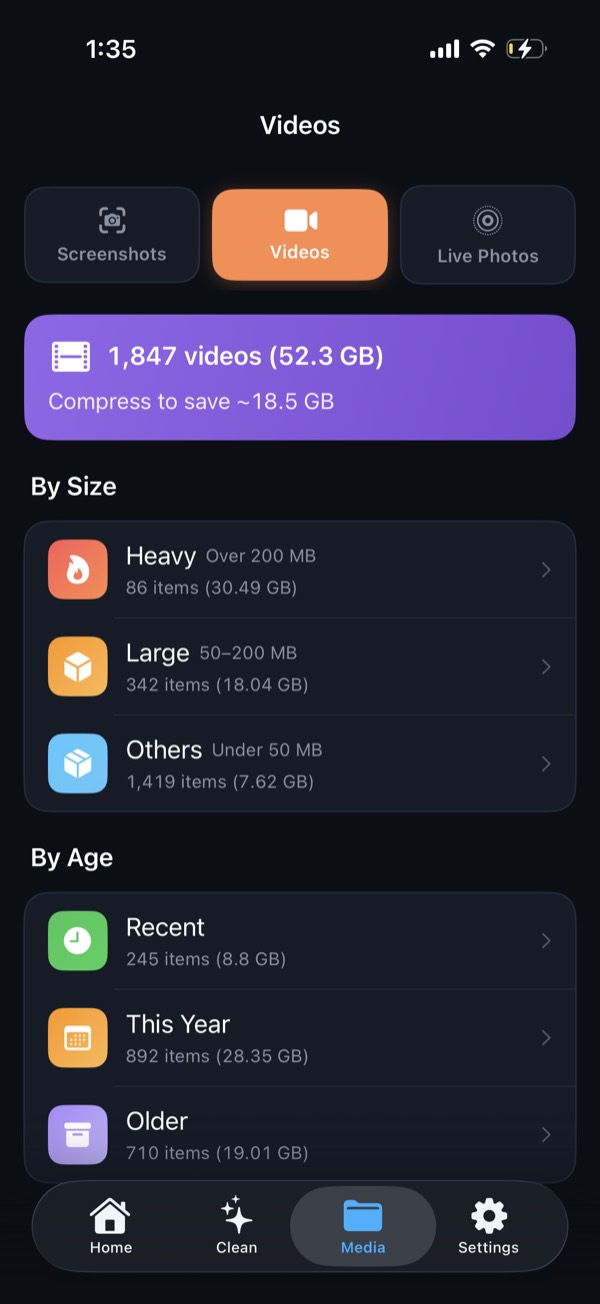
If you use iCloud Photos, every duplicate, blurry shot and oversized video on your iPhone is also using your iCloud storage. Clean Kit finds them on your device: remove duplicates, clear old screenshots and compress large videos, and the savings carry over to iCloud once it syncs.
Download on the App StoreFree to download for iPhone and iPad. Everything runs on your device, and your photos are never uploaded.
Frequently asked questions
Does deleting photos from my iPhone delete them from iCloud?
Yes, if iCloud Photos is turned on. Your library is synced, so deleting a photo on your iPhone removes it from iCloud and your other devices. If iCloud Photos is off, your iPhone and iCloud are separate.
Why is my iCloud still full after deleting photos?
Deleted photos move to Recently Deleted and still count against your iCloud storage for up to 30 days. Empty Recently Deleted to free the space right away. The storage total can also take a little while to update.
Is it safe to delete old iCloud backups?
Backups of devices you no longer use are generally safe to delete. Don't delete the backup of the iPhone you currently use unless you have another backup, for example on a computer.
Does compressing videos save iCloud storage?
Yes, once you delete the original. The smaller compressed copy syncs to iCloud, and removing the original frees its space after it leaves Recently Deleted.