IPhone System Data too large? How to reduce it
System Data (called "Other" in older iOS versions) is caches, logs, temporary files and other resources iOS manages itself. You can't delete it directly. To shrink it: restart your iPhone, clear Safari history and website data, set Messages to keep messages for 1 year, delete large offline downloads in streaming apps, and keep at least 5–10 GB free so iOS can clean up on its own. As a last resort, back up, erase and restore.
Where to see System Data
- Open Settings → General → iPhone Storage.
- Wait for the list to finish loading, then scroll all the way to the bottom.
- You'll see iOS (the operating system itself) and System Data. Tap System Data to see its size.
The size goes up and down. It's normal for System Data to change by several gigabytes over a day as iOS creates and clears caches.
What is inside System Data?
- Caches from Safari, streaming apps and other apps
- Logs and diagnostics iOS keeps for troubleshooting
- Temporary files, for example from software updates, downloads in progress or iCloud syncing
- System resources such as Siri voices, fonts, dictionaries and keyboard data
Most of this is meant to be temporary. Problems start when the iPhone is nearly full: iOS has less room to work, caches pile up, and System Data can grow very large.
How to reduce System Data, step by step
1. Restart your iPhone
Restarting clears many temporary files. Turn the iPhone off, wait 30 seconds, and turn it back on. Then check iPhone Storage again after a few minutes.
2. Clear Safari history and website data
Go to Settings → Apps → Safari → Clear History and Website Data (on iOS 17 and earlier: Settings → Safari). This signs you out of websites. For more, see our guide on how to clear cache on iPhone.
3. Keep Messages for 1 year
Go to Settings → Apps → Messages → Keep Messages and choose 1 Year. Old conversations with lots of attachments can be surprisingly large.
4. Delete offline downloads in streaming apps
Downloaded music, podcasts, movies and maps add up quickly. Open apps like your music, video or podcast app and remove downloads you've already played. Many apps also have their own "clear cache" option in their settings.
5. Free up space so iOS can clean up itself
iOS clears caches automatically when it needs room. It works much better when there's free space to work with. Keep at least 5–10 GB free by removing what you really don't need. Photos and videos are usually the biggest category; see how to free up space when iPhone storage is full.
6. Update iOS
Bugs in some iOS versions have caused System Data to grow too large. Updates often fix them. Check Settings → General → Software Update.
7. Last resort: back up, erase and restore
If System Data is still huge after all of the above, back up your iPhone to iCloud or a computer, then go to Settings → General → Transfer or Reset iPhone → Erase All Content and Settings and restore from the backup. This rebuilds the system from scratch and usually shrinks System Data a lot. Make sure your backup is complete before erasing.
Free up space where you can control it
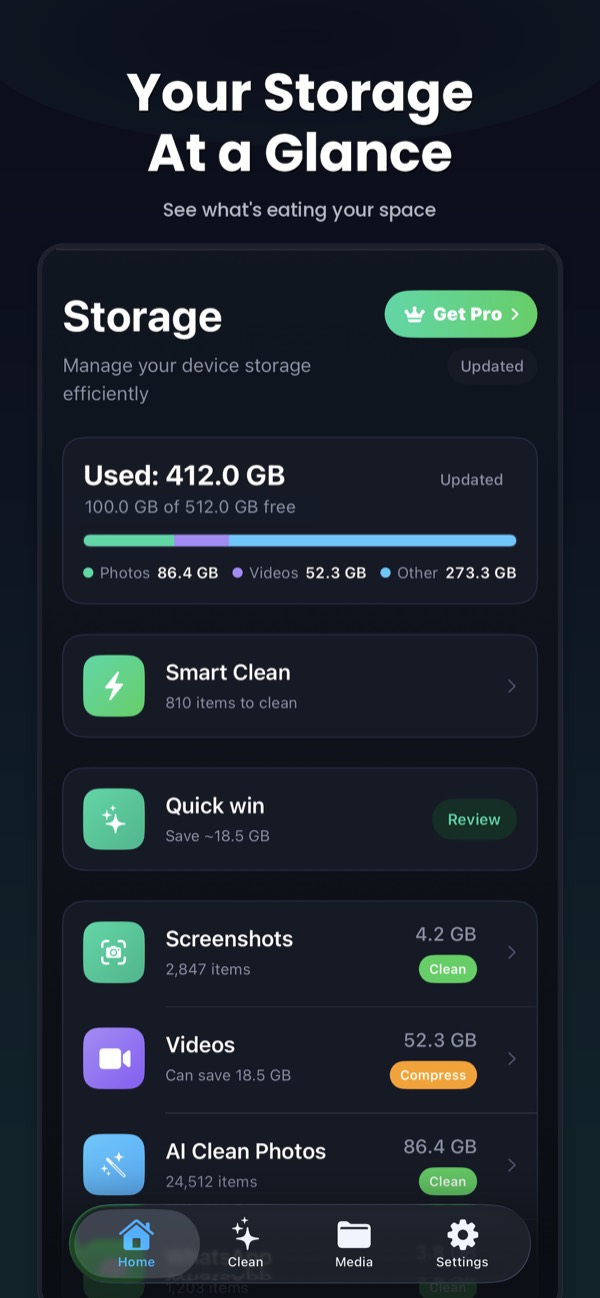
You can't delete System Data directly, but you can give iOS the free space it needs to clean up after itself. Clean Kit finds the biggest wins in your photo library, like duplicates, blurry shots, old screenshots and large videos, and clears them in a few taps.
Download on the App StoreFree to download for iPhone and iPad. Everything runs on your device, and your photos are never uploaded.
Frequently asked questions
Is it safe to delete System Data on iPhone?
There's no button to delete it, and that's on purpose: iOS manages it. The safe ways to reduce it are restarting, clearing Safari and app caches, and keeping enough free space for iOS to clean up automatically.
Why does my iPhone System Data keep growing?
Usually because storage is nearly full, so iOS can't clear caches and temporary files properly. Streaming caches, Messages attachments and pending updates can also add to it. Freeing up space elsewhere often makes System Data shrink on its own.
Will restarting my iPhone reduce System Data?
Often, yes. A restart clears many temporary files and caches. Check iPhone Storage again a few minutes afterwards, since the number takes time to update.
Does erasing and restoring my iPhone delete my photos?
Erasing removes everything from the iPhone. Your photos come back when you restore only if they're in your backup or in iCloud Photos. Always confirm your backup is complete before erasing.