How to compress videos on iPhone and save storage
iPhone has no built-in "compress video" button. You can shrink videos by trimming them in Photos, or by using a compression app that re-encodes them with HEVC (H.265) at a lower resolution, such as 1080p instead of 4K. To make future videos smaller, go to Settings → Camera → Record Video and pick 1080p at 30 fps, with Formats → High Efficiency turned on.
Why videos use so much storage
Video is by far the heaviest thing on most iPhones. According to the sizes Apple lists in Settings, one minute of video at 4K 60 fps uses about 400 MB, compared with about 60 MB at 1080p 30 fps (both with High Efficiency on). That's more than six times the space for the same minute. A handful of long 4K clips can easily take more room than your entire photo library.
Step 1: Find your largest videos
- Open Photos → Media Types → Videos.
- Longer videos are almost always bigger, so look for long durations in the corner of each thumbnail.
- To check a video's exact size, open it and swipe up (or tap the ⓘ button). The info panel shows the resolution, frame rate and file size.
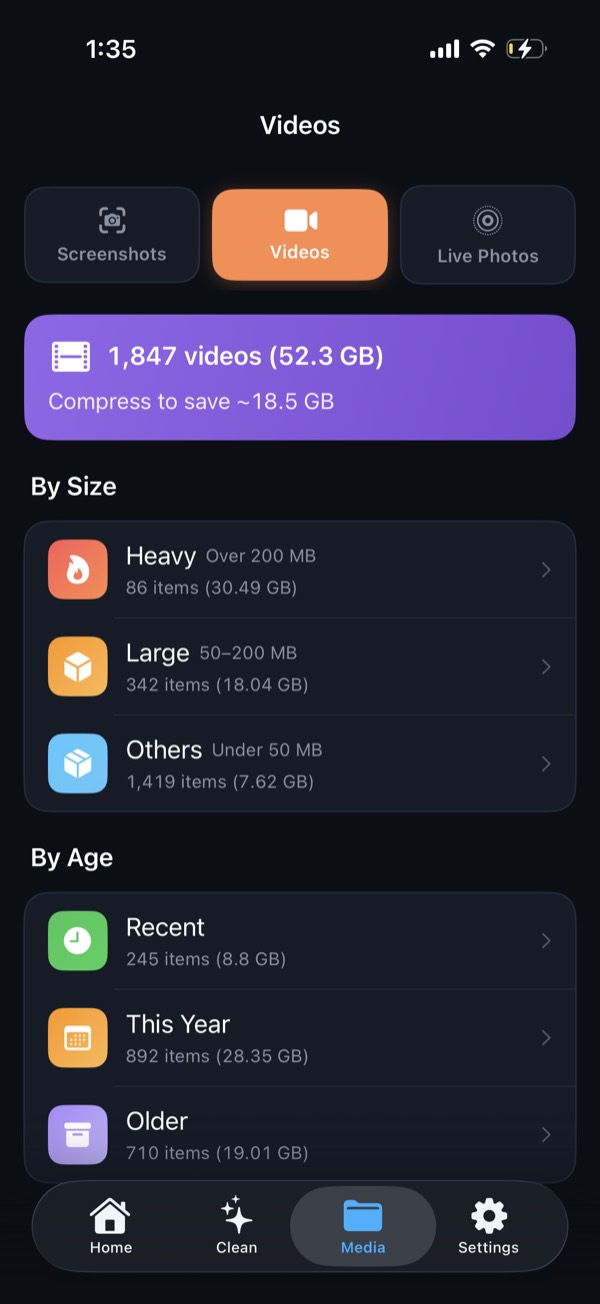
The Photos app can't sort by file size. A storage app such as Clean Kit can list your videos from largest to smallest.
Step 2: Shrink the videos you keep
Option A: Trim them
- Open the video and tap Edit.
- Drag the yellow handles on the timeline to keep only the part you want.
- Tap Done → Save Video as New Clip, then delete the original.
Trimming keeps the full quality, but it only helps if you're happy to cut footage.
Option B: Compress (re-encode) them
Compression keeps the whole video but stores it more efficiently. You can lower the resolution (for example, 4K → 1080p) and use the HEVC codec. On a phone screen, a 1080p HEVC version usually looks almost identical but uses a fraction of the space. Always check the compressed copy before deleting the original.
Step 3: Record smaller videos from now on
- Settings → Camera → Formats → High Efficiency. This records in HEVC, which is roughly half the size of the older "Most Compatible" H.264 format at similar quality.
- Settings → Camera → Record Video → 1080p at 30 fps. Keep 4K for moments that really need it. You can still switch to 4K from the Camera app when you want it.
- Turn off Enhanced Stabilization and HDR Video if you don't need them. Both can add to file size on some models.
Compress videos in a few taps
Clean Kit sorts your videos by size and lets you compress them right on your iPhone. There are three quality levels: Optimal (HEVC, keeps up to 4K), Medium (1080p) or Maximum savings (720p). Once you're happy with the result, delete the original to reclaim the space.
Download on the App StoreFree to download for iPhone and iPad. Everything runs on your device, and your photos are never uploaded.
Frequently asked questions
Does compressing a video on iPhone reduce quality?
Some, but often less than you'd expect. Re-encoding with HEVC at the same resolution is barely visible on a phone screen. Dropping from 4K to 1080p mostly matters if you'll watch on a large TV. Always compare before deleting the original.
How do I make a video smaller to send on iPhone?
Mail offers to resize large attachments, and Messages and WhatsApp compress videos automatically when you send them. To shrink the copy saved on your iPhone, trim it in Photos or use a compression app.
Is HEVC compatible with Windows and Android?
Most modern devices play HEVC, but some older Windows PCs need the HEVC extension installed. If you share videos a lot, iOS automatically converts them to a compatible format when you AirDrop or share them.
Does iCloud compress my videos?
No. iCloud stores your originals at full quality. With Optimize iPhone Storage turned on, your iPhone keeps a smaller preview locally and downloads the original when you need it, but the full-size file still counts against your iCloud storage.