How to delete WhatsApp media on iPhone and free up space
In WhatsApp, go to Settings → Storage and Data → Manage Storage to review and delete large files and media in each chat. Then stop WhatsApp from copying media into your camera roll: go to Settings → Chats and turn off Save to Photos. Finally, delete the WhatsApp images and videos that were already saved to your Photos library.
Why WhatsApp uses so much iPhone storage
WhatsApp can store media in two places:
- Inside WhatsApp, which shows as "Documents & Data" for WhatsApp in Settings → General → iPhone Storage.
- In your Photos library, if Save to Photos is on. Every meme, forwarded video and group-chat photo gets copied into your camera roll, and then into iCloud Photos too.
Busy group chats can add gigabytes in a few months, so it's worth cleaning both.
Step 1: Clean media inside WhatsApp
- Open WhatsApp → Settings → Storage and Data → Manage Storage.
- At the top, open Larger than 5 MB to see the biggest files across all chats. Select and delete the ones you don't need.
- Below that, chats are listed by how much space they use. Open the biggest ones, tap Select, and delete media in bulk.
Step 2: Stop WhatsApp saving to your camera roll
- Open WhatsApp → Settings → Chats.
- Turn off Save to Photos.
New media will stay inside WhatsApp. You can still save a specific photo by opening it and tapping the share button.
You can also stop automatic downloads under Settings → Storage and Data → Media Auto-Download. Set photos, audio, videos and documents to Wi-Fi or Never, so big videos only download when you tap them.
Step 3: Remove WhatsApp media already in Photos
This is the hard part. The Photos app doesn't have a WhatsApp album by default, so saved WhatsApp media is mixed in with your own photos. Some ways to find it:
- Scroll through your library around busy chat days and look for forwarded images, memes and stickers.
- Use Photos search for words like "screenshot", "text" or "meme". Results vary.
- Use a cleaner app that can identify media saved from WhatsApp and group it for review.
After deleting, remember to empty Utilities → Recently Deleted in Photos.
Find WhatsApp media in your Photos library
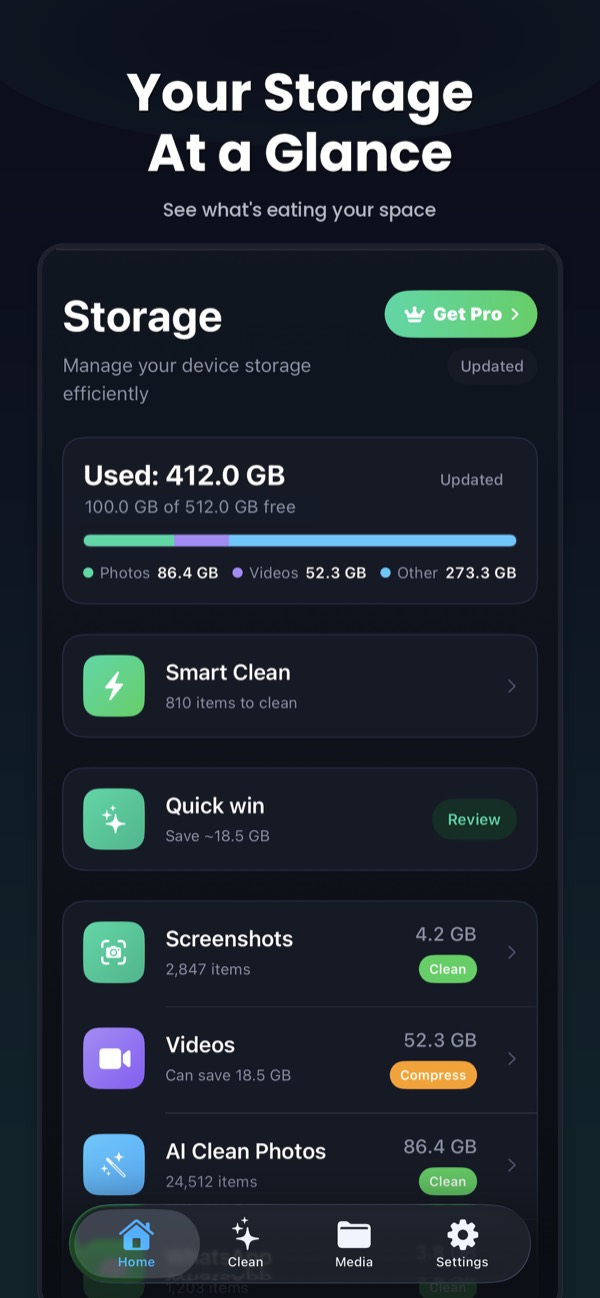
Clean Kit's WhatsApp Cleaner finds the photos and videos that WhatsApp saved into your camera roll, which is where they quietly use the most space. Review them, select what you don't need, and delete them in bulk.
Download on the App StoreFree to download for iPhone and iPad. Everything runs on your device, and your photos are never uploaded.
Frequently asked questions
Does deleting WhatsApp media from Photos delete it from the chat?
No. The copy in your Photos library is separate from the copy inside WhatsApp. Deleting one doesn't delete the other, which is why you need to clean both places.
How do I stop WhatsApp from saving photos to my iPhone gallery?
Open WhatsApp → Settings → Chats and turn off Save to Photos. You can also turn it off per chat: open the chat, tap its name, and change Save to Photos to Never.
Will clearing WhatsApp storage delete my messages?
Deleting media from Manage Storage removes only the selected photos, videos and files, not your text messages. Clearing an entire chat is a separate action under the chat's settings.