How to delete duplicate photos on iPhone
Open Photos, scroll down to Utilities and tap Duplicates. Tap Merge next to each set, or tap Select → Select All → Merge to merge everything at once. iOS keeps the highest-quality version, combines the metadata and moves the rest to Recently Deleted. The Duplicates album needs iOS 16 or later.
Method 1: Use the built-in Duplicates album
Since iOS 16, the Photos app detects duplicate images on-device and collects them in one album.
- Open the Photos app.
- Scroll down to the Utilities section and tap Duplicates. (On iOS 16–17, go to the Albums tab first and scroll to Utilities.)
- Review each set. Tap Merge next to a set to keep one copy.
- To clear everything at once, tap Select, then Select All, then Merge.
- Go to Utilities → Recently Deleted and delete the merged copies to free up the space right away.
When you merge, iOS keeps the version with the highest quality and combines relevant data, like captions, keywords and favorites, into it.
Don't see a Duplicates album? It only appears if iOS has found duplicates, and only after the library has finished indexing. If you just imported a lot of photos, leave your iPhone charging and locked overnight, then check again.
What the built-in tool doesn't catch
Apple's Duplicates album is conservative. It finds files that are the same image, or the same image saved at a different size or format. It does not group:
- Similar shots, like five almost identical photos taken a second apart
- Burst photos where only a few frames are worth keeping
- Edited copies or slightly cropped versions
- Blurry or out-of-focus shots that sit next to a good version of the same moment
For most people, these near-duplicates take up far more space than true duplicates.
Method 2: Manually clean similar photos
- Open Photos and browse your library by day or month.
- Tap Select, then drag your finger across a row of thumbnails to select many at once.
- Deselect the one photo you want to keep from each group.
- Tap the trash icon to delete, then empty Recently Deleted.
For bursts, open Media Types → Bursts, open a burst and tap Select, pick the frames to keep, then tap Done → Keep Only Favorites.
This works, but it's slow for a library of thousands of photos. That's where a dedicated duplicate finder helps.
Catch the similar photos iOS misses
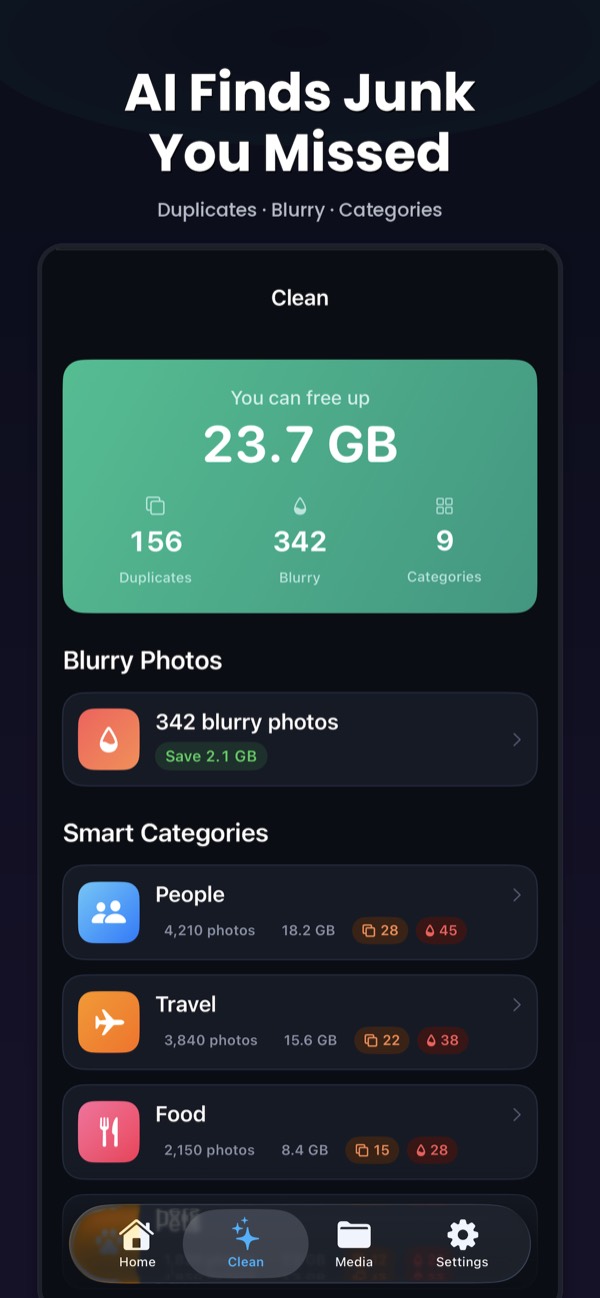
Clean Kit uses on-device AI to find exact and near-duplicate photos, including bursts and multiple takes of the same moment. Each group is ranked by sharpness, resolution, exposure and face quality, so the best shot is kept automatically. Groups are sorted by how much space they save. Biggest wins first.
Download on the App StoreFree to download for iPhone and iPad. Everything runs on your device, and your photos are never uploaded.
Frequently asked questions
Does merging duplicates on iPhone delete photos permanently?
No. Merged copies move to Recently Deleted, where you can recover them for up to 30 days. To free the space immediately, empty Recently Deleted after merging.
Why doesn't my iPhone show a Duplicates album?
The album only appears on iOS 16 or later, and only when duplicates are found. It can also take a while to appear after a large import, because iOS analyzes photos in the background, mostly while the phone is locked and charging.
Will deleting duplicates on iPhone delete them from iCloud too?
Yes. If iCloud Photos is turned on, your library is synced, so deleting or merging a photo on your iPhone removes it from iCloud and your other devices too.
What is the difference between duplicate and similar photos?
Duplicates are the same image saved more than once. Similar photos are different shots of the same scene, such as a burst or several takes. iOS only finds duplicates. Tools like Clean Kit also group similar photos and suggest the best one to keep.