
Blurry photo detection
The iPhone Photos app has no blurry album. Clean Kit checks every photo on your device and lists the ones where nothing is in focus. Review them in a grid, keep what matters and delete the rest in bulk.
Download on the App Store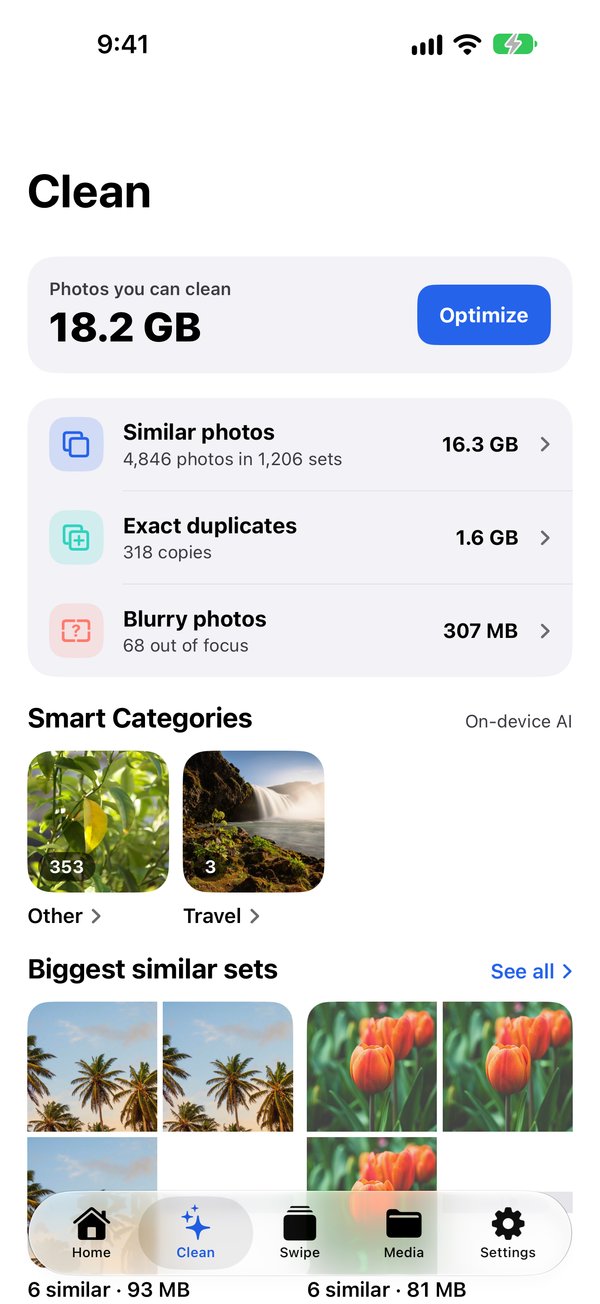
Why blurry photos are hard to find
Blurry shots hide between good ones: a shaky night photo, a missed focus on a moving pet, a pocket shot. iOS doesn’t group them, so most people never delete them, and each one still takes as much space as a sharp photo.
What counts as blurry
A photo is only marked blurry when no part of it is sharp. That keeps false matches low:
- A sharp subject on a soft background counts as sharp
- Plain images such as sky, walls or dark scenes are skipped
- Screenshots and Portrait mode photos are never flagged
- Photos already in a duplicate or similar group are handled there instead
Review, then delete in bulk
Open Blurry photos in the Clean tab to see every match in a grid. Deselect the ones you want to keep and delete the rest. Smart Clean can also include blurry photos in its one-tap cleanup. Deleted photos go to Recently Deleted in Photos for about 30 days, so you can still recover them.
Step-by-step guides
How to delete blurry and similar photos on iPhone
Find out-of-focus shots and near-identical photos iOS doesn't catch.
IPhone storage full? How to free up space fast
See what is using your space, then clear photos, videos, Messages and apps step by step.
How to delete duplicate photos on iPhone
Use the built-in Duplicates album, then catch the similar shots iOS misses.
Frequently asked questions
Does the iPhone have a built-in way to find blurry photos?
No. Photos has albums for duplicates and screenshots, but not for blurry shots. You need to scroll through your library or use an app such as Clean Kit.
Will it flag my Portrait mode photos because the background is soft?
No. Clean Kit looks for any sharp area in the photo, so a sharp subject on a blurred background counts as sharp. Portrait mode photos are skipped completely.
Are my photos uploaded to check them?
No. The check runs on your iPhone or iPad. Nothing is uploaded and the App Store privacy label is Data Not Collected.
More Clean Kit features
Smart Clean (One-Tap Optimize)
Clean Kit's Smart Clean bundles duplicates, blurry photos and old screenshots into one recommendation, shows the space you'll free, and cleans in one tap.
Duplicate & similar photo finder
Find exact duplicates and near-identical photos on iPhone with on-device AI. Clean Kit keeps the sharpest shot in each group and sorts by space saved.
AI photo categories
Clean Kit sorts your iPhone photos into People, Travel, Food, Pets, Nature and more with on-device AI, so you can clean up your library one topic at a time.
Screenshot cleaner
Clean Kit groups your iPhone screenshots by age, so you can delete everything older than 30 days in one go and keep the recent ones you still need.
Video compressor
Compress large iPhone videos with HEVC at three quality levels and keep your memories in far less space. Clean Kit sorts videos by size and runs on-device.
Live Photo converter
Every Live Photo hides a short video. Clean Kit converts Live Photos to stills in bulk and keeps the original date, location and metadata.
WhatsApp media cleaner
WhatsApp can copy every photo and video you receive into your camera roll. Clean Kit finds that WhatsApp media in your library so you can bulk-delete it.
Storage dashboard & report card
See total, used and free iPhone storage at a glance, with a breakdown of photos, videos, screenshots and Live Photos, plus a report card after every cleanup.
Widgets & Siri Shortcuts
Add Clean Kit storage and battery widgets to your Home Screen or Lock Screen, and ask Siri to check storage, scan for duplicates or start a Smart Clean.
Swipe Review
Clean Kit's Swipe Review lets you sort iPhone photos month by month. Swipe left to delete, right to keep, undo any swipe and check your picks first.