How to delete blurry and similar photos on iPhone
The iPhone Photos app has no built-in way to find blurry photos, and its Duplicates album doesn't group similar shots. To clean them up manually, browse your library by day, tap Select, drag across the shots you don't need and delete them, and use Media Types → Bursts to keep only the best burst frames. A photo cleaner app with on-device AI can detect blurry and similar photos automatically.
Why blurry and similar photos pile up
We take more photos than we keep. A typical moment produces several almost identical shots, a burst, or a couple of blurry attempts before the good one. Each of those is a full-size photo, often several megabytes. Over a few years, that easily becomes thousands of photos you'll never look at again.
What the Photos app can and can't do
- Can: find exact and near-exact copies in the Duplicates album (iOS 16 and later). See how to delete duplicate photos.
- Can: show your Bursts separately and let you keep only the frames you pick.
- Can't: detect blurry or out-of-focus photos.
- Can't: group similar but different shots of the same scene.
Method 1: Clean up manually in Photos
Similar shots
- Open Photos and view your library by Days, so shots from the same moment sit together.
- Tap Select, then drag your finger across a row to select a group of similar shots.
- Tap to deselect the one you want to keep.
- Tap the trash icon. Repeat for each moment.
Blurry photos
There's no filter for blur, so you need to spot them yourself. Pinch to make thumbnails larger. Blurry photos are easier to see at a bigger size. Low-light shots, moving subjects and photos taken while walking are the usual suspects.
Bursts
- Open Photos → Media Types → Bursts.
- Open a burst and tap Select.
- Tick the frames you want to keep, tap Done, then choose Keep Only Favorites.
When you're done, empty Utilities → Recently Deleted to actually free the space.
Method 2: Use an app with on-device AI
Manual cleanup works, but it takes hours for a large library. Photo cleaner apps can analyze sharpness and visual similarity automatically. If you use one, check that it processes photos on your device rather than uploading your library to a server. The App Store privacy label on each app's page tells you what data it collects.
Let on-device AI find them
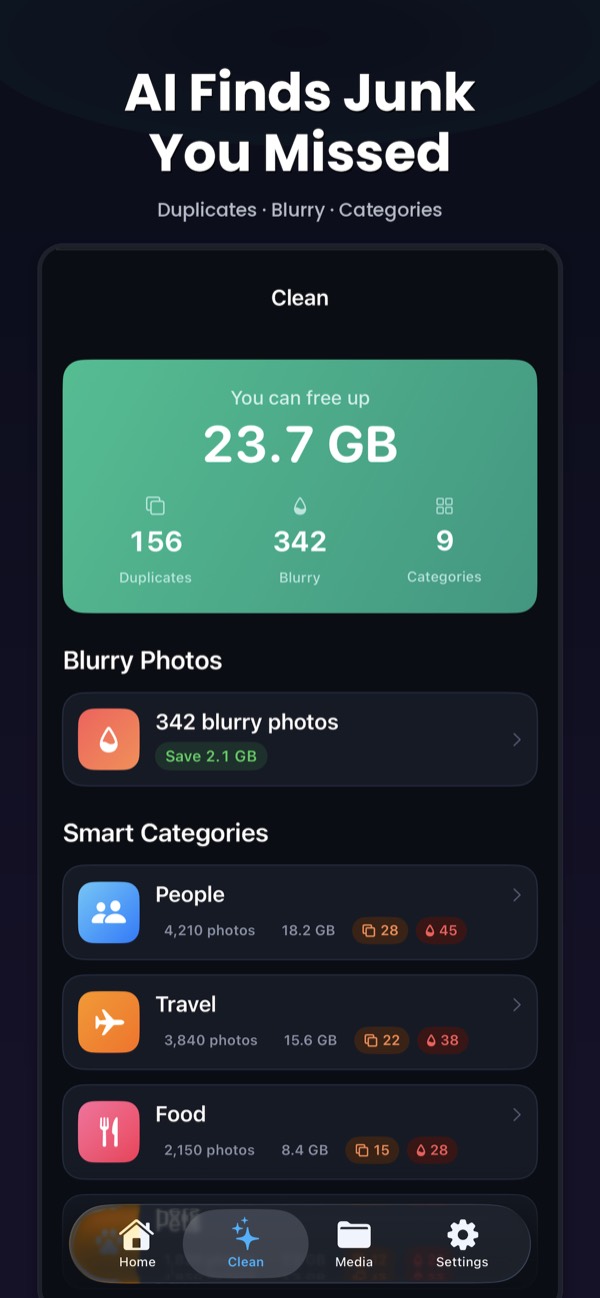
Clean Kit uses Apple's on-device Vision framework to spot blurry photos and group similar shots across your library. In each group it highlights the best photo by sharpness, resolution, exposure and face quality, so you only need to confirm. Nothing is uploaded.
Download on the App StoreFree to download for iPhone and iPad. Everything runs on your device, and your photos are never uploaded.
Frequently asked questions
Can iPhone automatically delete blurry photos?
No. iOS doesn't detect or remove blurry photos by itself. You can find them manually, or use an app that analyzes sharpness on your device and suggests which ones to delete.
What is the difference between similar and duplicate photos?
Duplicates are the same image saved more than once, which iOS can find in its Duplicates album. Similar photos are separate shots of the same scene, like several takes of a group photo. iOS doesn't group those, so you need to review them yourself or use an app.
Will I lose the best version when deleting similar photos?
Not if you review each group first. Clean Kit suggests the best shot in every group based on sharpness, resolution, exposure and face quality, and you can change the choice before deleting. Deleted photos stay in Recently Deleted for up to 30 days.