
How to mass delete photos on iPhone
In Photos, tap Select, then touch a photo and drag sideways and down without lifting your finger. The view scrolls and selects everything you pass, so you can select thousands in seconds. Tap the trash icon to delete, then empty Utilities → Recently Deleted. To narrow it down first, open an album under Media Types such as Screenshots or Videos.
Before you start
Back up first. If iCloud Photos is on, deleting on your iPhone deletes from iCloud and every device. If you want to keep copies, export them to a computer or another service first.
Method 1: Drag to select
- Open Photos and tap Select.
- Touch the first photo you want to delete and, without lifting your finger, drag sideways across the row and then down.
- Keep holding near the bottom edge. The grid scrolls and keeps selecting.
- Tap any photos you want to keep to deselect them.
- Tap the trash icon and confirm.
- Empty Utilities → Recently Deleted to free the space.
Method 2: Narrow it down with Media Types
Scroll down in Photos to Media Types. Each album shows only one kind of item, which makes bulk selection safer:
- Screenshots and Screen Recordings: usually the easiest to clear. Full guide.
- Videos: fewer items, but the biggest files.
- Bursts: keep one frame and remove the rest.
Method 3: Use a Mac
With iCloud Photos on, open Photos on your Mac, select a view such as a year or an album, press Command-A to select everything, and press Delete. The change syncs to your iPhone.
Method 4: Use a cleaner app
Dragging is fast, but you still decide photo by photo. A cleaner app can group what you’re likely to delete, such as duplicates, blurry shots and old screenshots, so you can remove a whole group at once. Check the App Store privacy label first, since the app needs full access to your library.
Delete in bulk by what it is, not by dragging
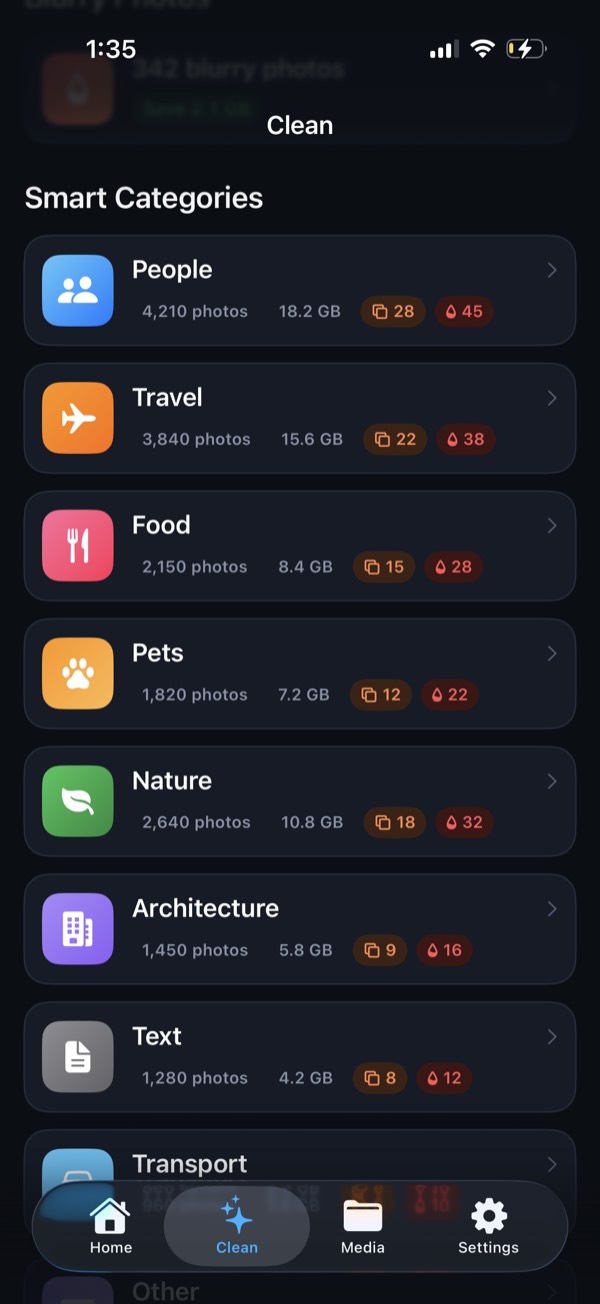
Clean Kit groups your library for you: duplicates, blurry photos, screenshots by age, large videos and AI categories like Food or Text. Select a whole group and delete it in one go, with everything going to Recently Deleted first.
Download on the App StoreFree to download for iPhone and iPad. Everything runs on your device, and your photos are never uploaded.
Frequently asked questions
Is there a way to select all photos on iPhone?
The Photos app has no Select All for the whole library. Drag-selecting is the fastest built-in method. On a Mac with iCloud Photos, you can press Command-A in Photos to select everything in a view, and the deletion syncs to your iPhone.
Can I recover photos after mass deleting them?
Yes, for up to 30 days. They go to Recently Deleted, where you can select them and tap Recover. Once you empty Recently Deleted, they're gone.
Does mass deleting on iPhone delete from iCloud?
Yes, if iCloud Photos is on. Back up anything you want to keep before deleting large batches.