How to clear cache on iPhone
To clear the Safari cache, go to Settings → Apps → Safari → Clear History and Website Data. For Chrome, open Chrome, tap ⋯ → Delete Browsing Data. iOS has no button to clear all app caches at once: use an app's own "clear cache" setting if it has one, or delete and reinstall the app to remove its cached data.
What is cache, and should you clear it?
A cache is data apps and websites save so they load faster next time, like images, scripts and thumbnails. It's useful, but it can grow large, and a corrupted cache can make an app or website misbehave.
Clearing it is safe, but there's a trade-off: pages and apps load a bit slower at first, and clearing Safari website data signs you out of websites.
Clear the Safari cache
- Open Settings → Apps → Safari. (On iOS 17 and earlier: Settings → Safari.)
- Tap Clear History and Website Data.
- Choose a time range, such as All History, then confirm.
Want to keep your history? Instead, go to Settings → Apps → Safari → Advanced → Website Data and tap Remove All Website Data. You can also swipe left on individual sites to remove only those.
Clear the Chrome cache
- Open Chrome and tap the ⋯ button.
- Tap Delete Browsing Data.
- Choose a time range, make sure Cached Images and Files is selected, and confirm.
Clear app caches
iPhone doesn't have a system-wide "clear all app caches" button. You have three options:
1. Use the app's own setting
Many large apps include a storage or cache option in their settings, especially music, video, social and messaging apps. Look for words like Storage, Data, Clear cache or Free up space.
2. Delete and reinstall the app
Go to Settings → General → iPhone Storage and tap an app. If Documents & Data is much bigger than the app itself, deleting and reinstalling it clears that data. Warning: this also removes anything stored only on the device, such as offline downloads or unsynced data. Check the app syncs to an account first.
3. Know that "Offload App" doesn't clear cache
Offload App removes the app but keeps its documents and data. It's great for apps you rarely use, but it won't shrink the cached data.
Will clearing cache free up much space?
It depends. Browser caches are usually small. Some apps, especially streaming and social apps, can build up much larger caches over time. For most people, though, photos and videos use far more space. If your storage is full, start with our full guide to freeing up iPhone storage.
Caches are small. Photos are big.
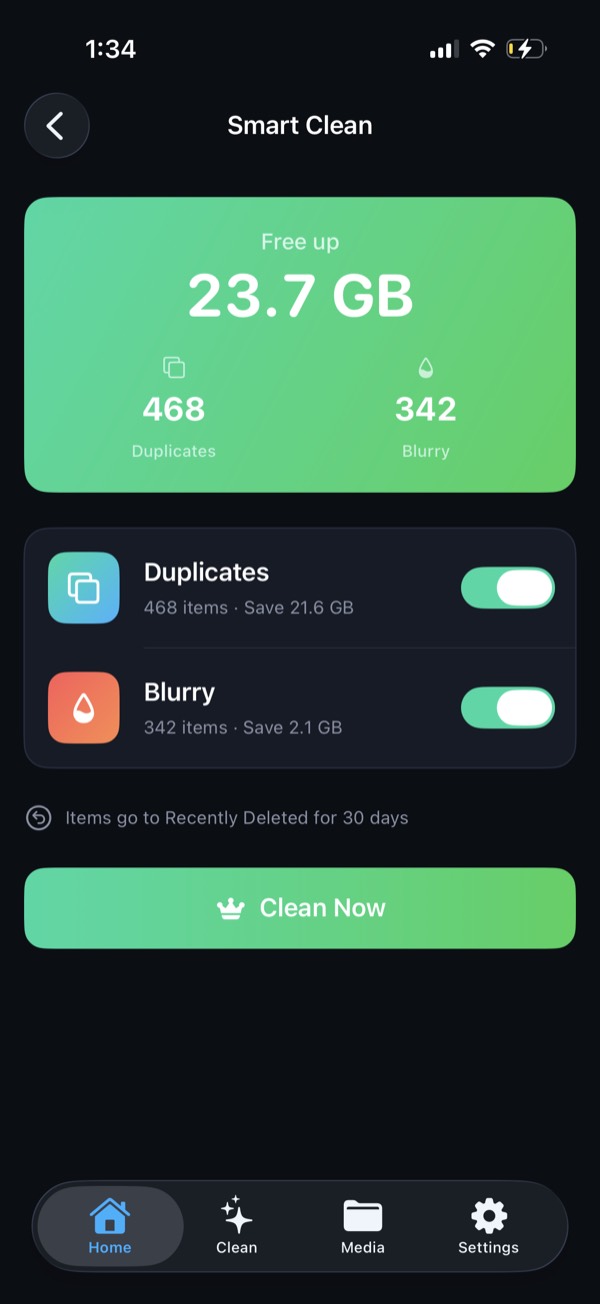
Clearing caches helps, but on most iPhones the photo library is where the gigabytes are. Clean Kit's Smart Clean finds duplicates, blurry photos and old screenshots and shows you how much space you'll get back before you delete anything.
Download on the App StoreFree to download for iPhone and iPad. Everything runs on your device, and your photos are never uploaded.
Frequently asked questions
Does clearing cache delete my photos or messages?
No. Clearing Safari or Chrome cache only removes website data and history. Deleting and reinstalling an app removes that app's local data, so check that anything important is synced to an account first.
How often should I clear the cache on my iPhone?
There's no need to do it on a schedule. Clear it when storage is low, or when a website or app is behaving strangely.
Why am I logged out of websites after clearing Safari data?
Website logins are stored in cookies, which are part of website data. Clearing it signs you out. Your saved passwords in Passwords or iCloud Keychain are not deleted, so signing back in is quick.